October's HubSpot updates are less about flashy launches and more about fixing the things that quietly get in your way. Think privacy controls for regulated teams, CRM access when your signal drops, and smarter property logic that keeps records tidy.
We've picked the updates we think will make the biggest practical difference, plus one gone-live feature that'll save you time when planning next year's targets. Here's what's worth knowing.
Here are our favourite HubSpot Product Updates for October 2026:
1. Personalised navigation
This is one we’ve been waiting for! HubSpot's left-hand navigation is getting a lot leaner. Instead of scrolling past 80-plus menu items, each user now gets a streamlined menu built around the tools they use most and the pages they've bookmarked. From there, you can pin and unpin items, create your own groupings and rearrange everything into the order that suits how you work.
Admins can opt themselves in first to preview the new navigation, then opt in the whole account. Once that's done, users will see the option to switch to the new navigation directly in their menu. Existing users start with their bookmarks, most-used tools and relevant use cases, while new users get a menu based on the use case they choose at sign-up.
There's also a separate beta for admins who want more control. With admin-customisable navigation, you can build navigation templates that set which tools are visible and how they're grouped, then apply them to specific users and teams from the navigation settings page.
Use Case: A support team only needs tickets, the help desk and the knowledge base day to day, but they've been hunting through marketing and sales tools to find them. Their HubSpot admin creates a navigation template for the Support team showing just those tools in one group. New starters log in to a menu that matches their job from day one, which makes onboarding quicker and cuts down on "where do I find…" questions.
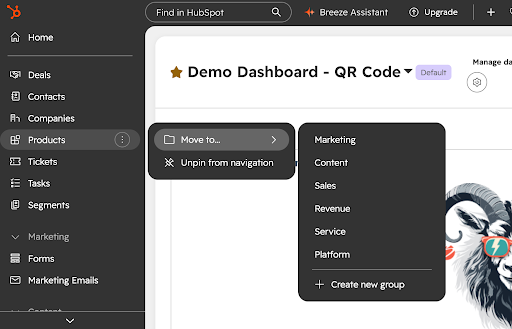
Available in: All hubs and tiers. Admin-customisable navigation is available on Professional and Enterprise.
Note: Both are public betas, and admin-customisable navigation needs to be joined separately. HubSpot's navigation guide has more detail.
2. Redacted email bodies
You can now log an email without having to log the content. Once an admin switches this on under Settings > Objects > Activities, sent emails are still logged against the record, but the body content is left out. HubSpot shows an indicator on the email activity so everyone knows the body was intentionally not logged, rather than missing by mistake.
Use Case: Your business requires data privacy, but you still want to be able to show activity in HubSpot. For example, a private medical practice uses HubSpot to manage patient enquiries and follow-ups. Their compliance team needs proof that a follow-up email went out on a specific date, but they can't have clinical details sitting in the CRM. With redacted email bodies switched on, the activity timeline shows exactly when each email was sent and to whom, while the sensitive content stays out of HubSpot.
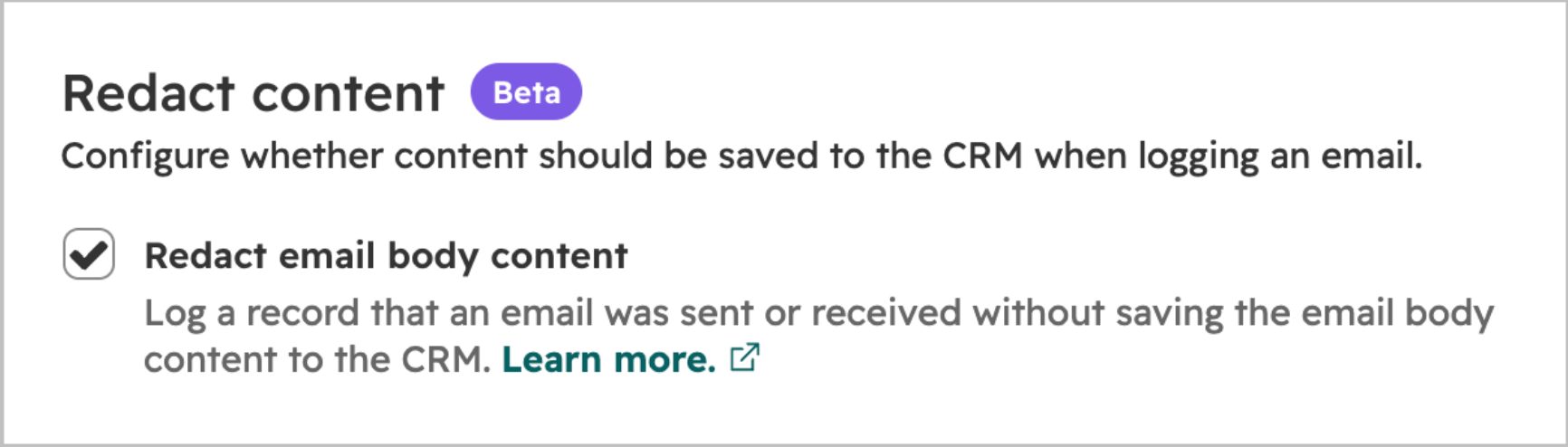
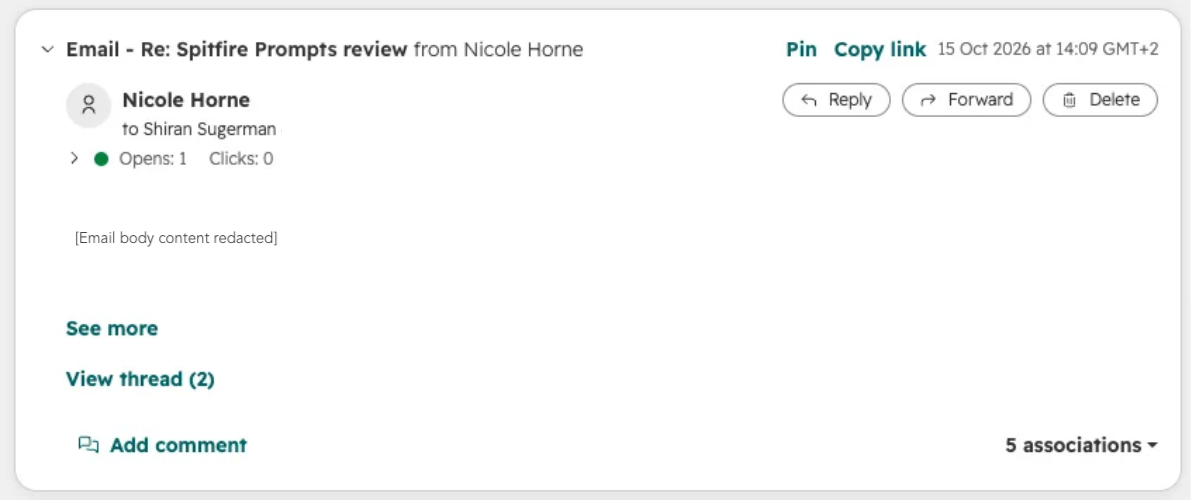
Available in: Sales Hub, all tiers (including Free)
Note: The setting is portal-wide. It applies to every user in the account, and there's no option to turn it on or off per user or per email.
3. Mobile Offline Read-only Mode
The HubSpot mobile app can now show you key CRM information when you lose your internet connection. With Offline Mode switched on, the app caches your most recently viewed records so you can still look things up on the go.
While offline, you can:
- View up to 50 of your most recently viewed records per object across contacts, companies, deals and tickets (200 in total)
- See standard and custom properties on those cached records
- Review the three most recent calls, emails or meetings on each cached record
- See your next five open tasks that are due and linked to cached records
- Browse cached records in list view and find them using global search
You will see an indicator when you're offline, along with each record's last-synced time. The app runs a full background refresh every 24 hours and picks up changes whenever you open it. You can also tap Resync data to trigger a manual sync before heading somewhere with poor signal.
To switch it on, opt into the beta, then go to Settings > Offline Mode in the mobile app and toggle Offline Mode on.
Use Case: A sales rep for an agricultural equipment supplier spends most days visiting farms with patchy or no signal. Before leaving the office, they open the records for the day's visits and tap Resync data. On site, they can still check the farm's deal stage, the notes from their last call and any open tasks, so they walk into every conversation prepared.
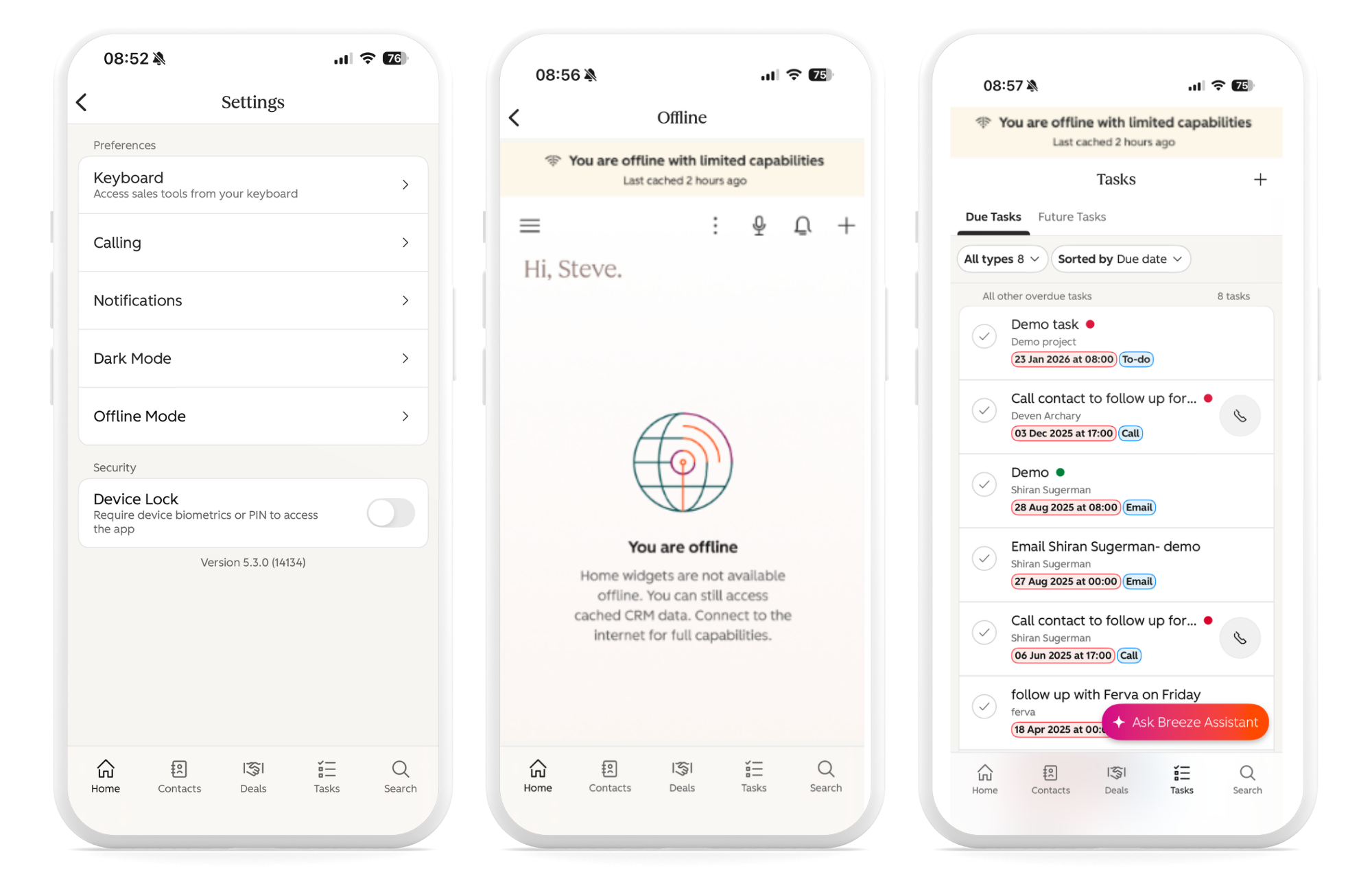
Available in: All paid HubSpot subscriptions, on iOS and Android.
Note: This is a public beta, and it's read-only for now, so you can't edit properties, create records or add notes while offline. HIPAA-enabled portals and other sensitive portals aren't supported.
4. Conditional property logic with AND/OR conditions
Conditional property logic is getting a lot more flexible. Until now, a dependent property could only be shown based on the value of one other property. Now you can build multiple groups of conditions using AND/OR logic, so a field only appears when the right combination of criteria is met.
To set it up, go to Settings > Properties, choose your object, then open the Conditional logic tab. Click Create logic, add your first condition, then add more conditions or extra groups. You can duplicate a group to speed things up, then click Save logic.
Use Case: A software reseller wants their onboarding team to capture an "Implementation contact" on deals, but only when it's relevant. They set the field to appear when the deal stage is Closed Won AND the product line is Software. Reps closing hardware-only deals never see it, and the onboarding team gets the details they need on every software deal.
Available in: Marketing Hub, Sales Hub, Service Hub, Data Hub and Smart CRM, Professional and Enterprise.
Note: This is scheduled for release on 26 October 2026, so it will go live in all portals at the end of the month.
Tools being sunset
It doesn’t happen often, but sometimes, HubSpot sunsets tools. This happens when their functionality has been absorbed into a newer, more flexible feature. This allows HubSpot to continue to innovate while still focusing on improving one solution rather than maintaining two.
Case Studies tool sunset
HubSpot is retiring the standalone case studies tool. If you've already published case studies, you don't need to do anything. HubSpot will automatically recreate them as blog posts using a template that mirrors the case study layout. Published case studies stay published and keep their existing URLs.
Going forward, you can create new case studies as blog posts using the blog template called Case Studies. Moving to blogs means more flexible templates and access to the advanced settings the old tool didn't have.
Use Case: A marketing team has a library of 20 case studies that their sales team links to in proposals. Because the URLs stay the same, none of those links break. The team can also start using blog features like tags and authors to organise case studies by industry, making it easier for reps to find the right story for each prospect.
Available in: The sunset applies to Content Hub Professional and Enterprise. The new Case Studies blog template is available on all tiers.
Note: HubSpot hasn't confirmed a date for the migration yet.
What’s gone live?
This update is out of beta and available now to everyone on the eligible tiers.
Clone Goals in Bulk
You can now select multiple goals in the Goals table and clone them for the next fiscal year in one go, instead of recreating them one by one. Select the goals you want, click Clone, confirm, and review the results. You can clone up to 50 goals per batch.
Use Case: A sales manager with a team of 15 reps sets quarterly revenue, meetings booked and calls made goals for each person. At year-end, that's dozens of goals to rebuild. With bulk cloning, they select the whole set, clone it into the new fiscal year and then tweak only the targets that need to change.
Available in: Sales Hub Starter, Professional and Enterprise. Service Hub Starter, Professional and Enterprise.
Note: The maximum batch size is 50 goals per request.
How to access Beta updates
Public betas can be switched on from the Product Updates area of your HubSpot account. A super admin can search for the feature by name and click Join beta. HubSpot's guide to opting into a public beta walks through the steps.
Keep in mind that beta features can change, and access or functionality may be updated before general release. It's worth testing in a sandbox or with a small group before rolling out to your whole team.
Need a hand?
Ready to master HubSpot? Join the Advanced HubSpot User Group for exclusive access to hands-on workshops, practical deep dives, and innovative strategies.
Want to discover how to maximise the value of your HubSpot portal? Reach out to us to schedule a portal audit, or discover our HubSpot CRM Implementation services.